
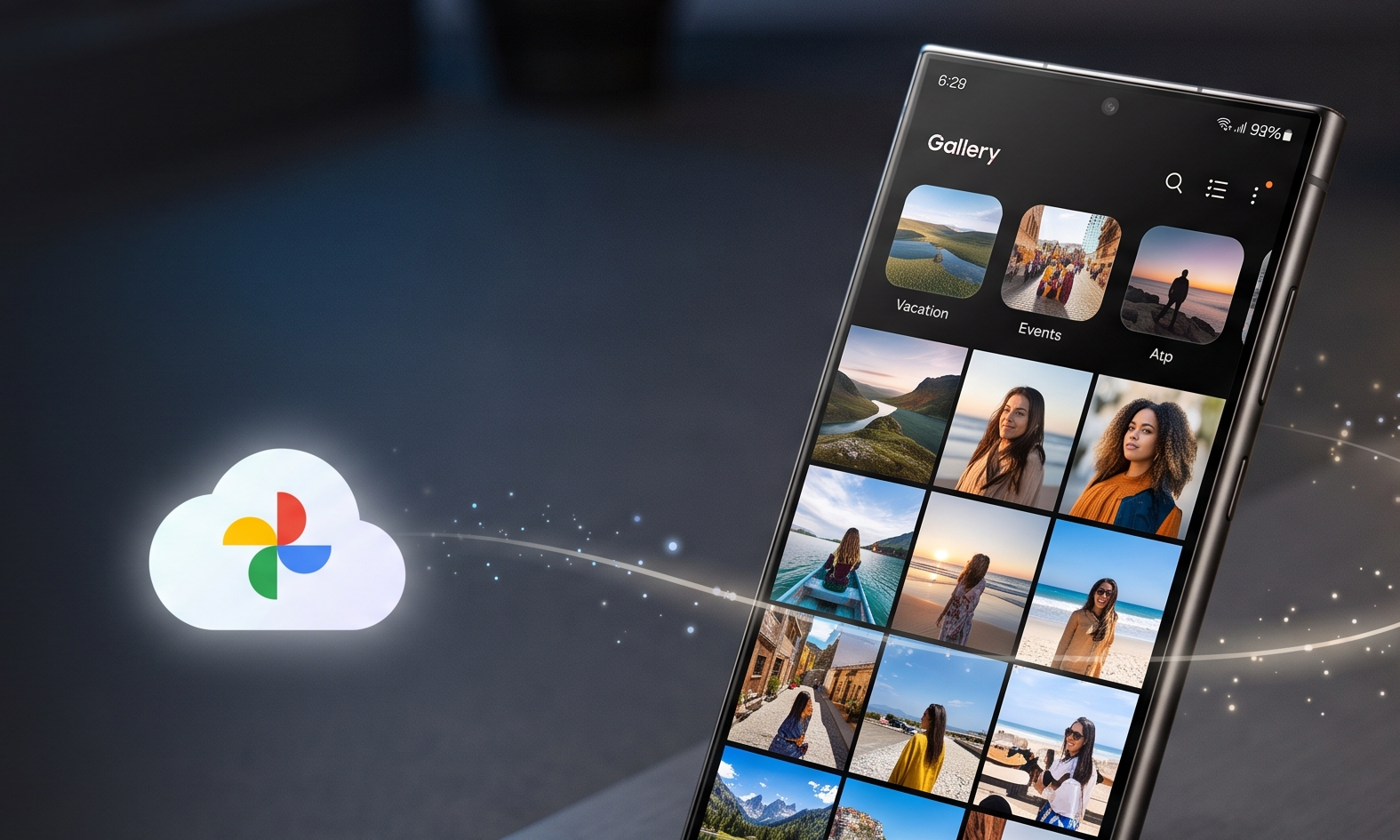
If you use a Samsung Galaxy phone, big changes are coming to how your photos and videos get backed up. Samsung is officially rolling out Google Photos integration directly inside the Samsung Gallery app, giving everyone a seamless way to sync memories to their Google account.
Why now? Because Samsung’s old partnership with Microsoft OneDrive is officially shutting down on September 30, 2026.
The update is already landing on some Galaxy devices, though rollout timing will depend on your location, phone model, and software update status.
How the Google Photos Sync Works
Once updated, you’ll find a brand-new “Sync photos and videos” toggle in your Gallery app settings.
Turn it on, sign into your Google account, and pick which albums you want to sync. It lets you keep enjoying Samsung’s native Gallery app while automatically backing up everything to Google Cloud in the background.
This feature is tied to updates for Samsung Gallery and the Gallery Cloud Sync service—specifically version 15.9.01.7 or newer.
Why Say Goodbye to OneDrive?
Samsung is phasing out its long-standing built-in OneDrive sync in favor of Google’s native services.
Microsoft’s support pages confirm that after September 30, 2026, Samsung Gallery won’t sync directly with OneDrive anymore. If you still want to back up to OneDrive after that, you’ll need to use Microsoft’s standalone OneDrive app and turn on its Camera Upload feature.
Switching to Google Photos keeps cloud backup convenient and built-in for Galaxy users.
Just keep in mind: this isn’t an automatic migration tool that moves your OneDrive library to Google.
What Happens to Your Existing OneDrive Photos?
Don’t panic—your files aren’t going anywhere.
When the integration ends, Microsoft won’t delete the photos you’ve already saved to OneDrive.
They’ll stay safely stored in your OneDrive account, accessible whenever you log in. The change simply means the Samsung Gallery app won’t automatically sync new photos there anymore.
Also, linking Samsung Gallery to Google Photos will not transfer your existing OneDrive media over to Google.
So if you have photos stored only in OneDrive, take a moment to sort them out before the September 30 cutoff.
How to Set Up Google Photos Sync
When the update reaches your device, turning it on takes just a few steps:
- Open the Samsung Gallery app.
- Tap the Menu button.
- Open Settings.
- Look for Sync photos and videos.
- Sign in with your personal Google account if prompted.
- Select the folders or albums you want to sync.
A quick heads-up: Google Photos integration requires a Samsung phone running Android 13 or newer and works with personal Google accounts (Google Workspace accounts aren’t supported).
Will You See All Your Google Photos in Samsung Gallery?
Not quite, and this is a key detail to remember.
Samsung Gallery won’t completely mirror your entire Google Photos library.
According to Google, Samsung Gallery only displays photos and videos uploaded directly through Samsung’s sync feature.
That means photos you uploaded to Google Photos from a computer, an older iPhone, or another device won’t automatically pop up inside Samsung Gallery.
Are There Any Feature Limitations?
Yes, there are a few trade-offs.
Google notes that items synced via Samsung Gallery don’t get all the full Google Photos features. Perks like Memories, highlight reels, Live Albums, and advanced search tools won’t work the exact same way for Gallery-synced media as they do for photos backed up natively through the Google Photos app.
In short, it’s a handy cloud backup integration, but it doesn’t turn Samsung Gallery into a full-fledged Google Photos replacement.
A Warning About Deleting Photos
Because this is a true two-way sync rather than a basic one-time upload, synced actions reflect across both platforms.
If you modify or organize supported photos in Samsung Gallery, those updates sync over to Google Photos as well.
Be extra careful when cleaning up your gallery: deleting a synced photo from Samsung Gallery might delete it from Google Photos, too, so don’t treat it like a traditional isolated archive!
Is Your Phone Supported?
The feature is rolling out in stages, so don’t worry if you don’t see it right away.
As long as your Galaxy device runs Android 13 or higher, you’re using a personal Google account, and your apps are updated, you should get access soon.
If the sync setting isn’t there yet, check the Galaxy Store and Google Play Store for system updates and try again in a few days.
Quick Recap: Google Photos vs. OneDrive
Here’s the main shift in a nutshell:
Old Way:
Samsung Gallery → Microsoft OneDrive
New Way:
Samsung Gallery → Google Photos/Google cloud storage
The key takeaway? Your existing OneDrive photos won’t move automatically over to Google Photos.
If you’ve accumulated years of memories on OneDrive, make sure to handle that library separately before the deadline.
What Should You Do Next?
Don’t wait until September 30 to sort out your photo backups!
Check your OneDrive account today to see what’s backed up. Then decide whether you’ll continue backing up via the Microsoft OneDrive app or switch your Gallery backup workflow over to Google Photos.
If you see the Sync photos and videos option in Samsung Gallery, check your available Google account storage before toggling it on.
Above all, remember that Samsung won’t transfer your OneDrive media to Google Photos for you.
Final Thoughts
Samsung moving built-in sync from OneDrive to Google Photos marks a big shift for Galaxy owners.
While the new Google Photos option is rolling out now, direct OneDrive sync in Gallery will officially end on September 30, 2026.
If you’re already invested in Google’s cloud ecosystem, this change makes backing up easier. But if you have a large library in OneDrive, keep a close eye on your files and backup settings.